SHARK PRECISION EQ
Small moves.
Clear decisions.
Four bands per channel. Stepped tonal control. Stereo and Mid/Side shaping, with a workflow built around listening.
IN DEVELOPMENT · RELEASE DETAILS TO FOLLOW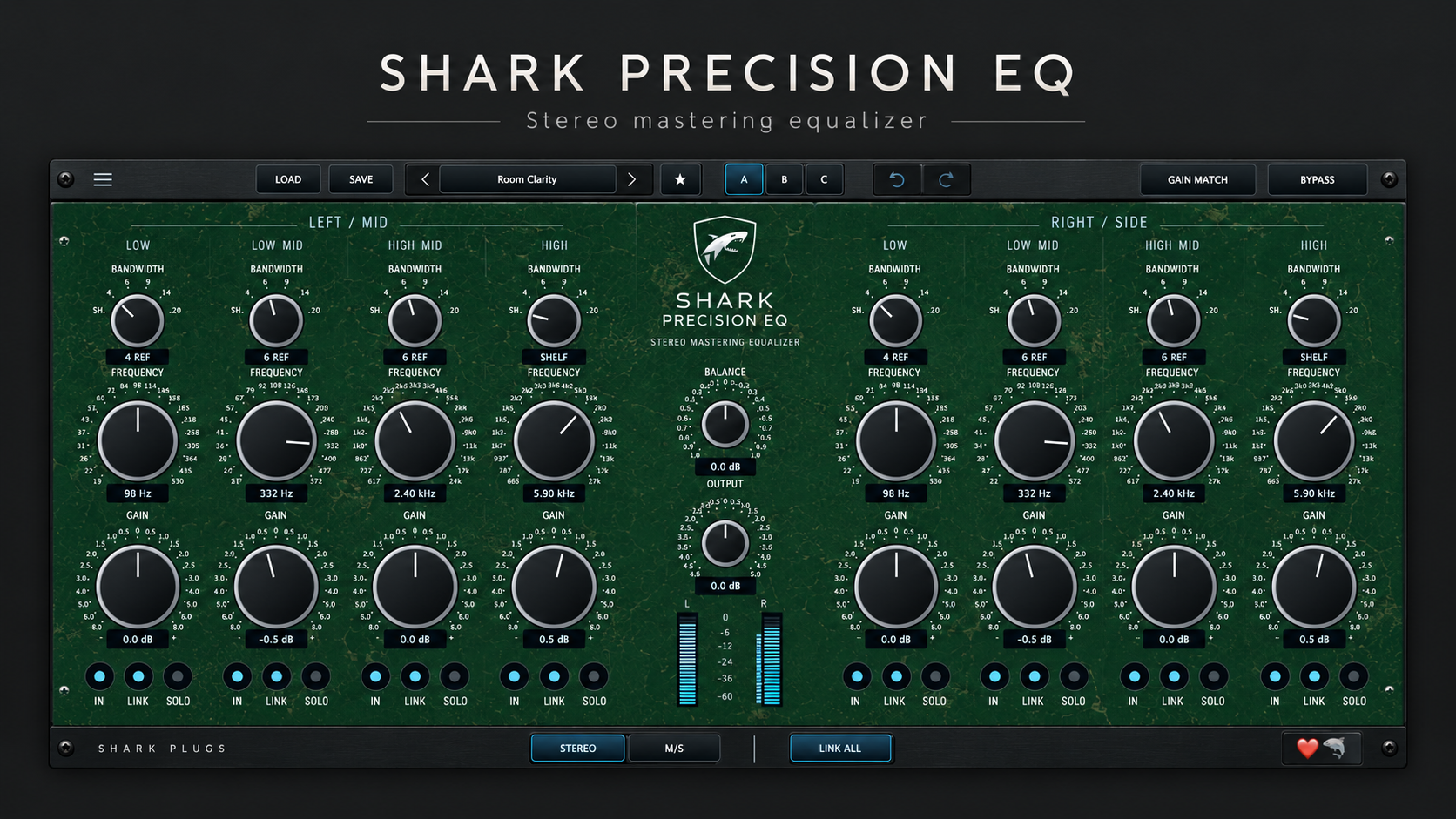
PRODUCT BROCHURE
A focused way to shape the whole picture.
Adjust the foundation, bring the middle into focus and open the top end. Precision EQ keeps four band sections visible on each side, with numerical readouts and repeatable steps for revisiting a decision.
Independent when you need it
Work on left and right channels, or switch to Mid/Side to shape the center and stereo difference separately. Link corresponding bands for coordinated adjustments.
Compare before you commit
Move between A/B/C settings, undo an edit and compare with Bypass. Gain Match helps reduce the distraction of level changes while you listen.
Your settings, within reach
Explore 49 starting presets, favorite useful choices and save your own. Four finishes share the same controls, with a little heart-and-shark thank-you in the corner.
ONLINE USER MANUAL · CURRENT DEVELOPMENT BUILD
Get to know Precision EQ.
Start here
- Insert the EQ on a stereo track or bus. Begin with a neutral setting and comfortable headroom.
- Choose Stereo and link the corresponding bands when you want the same change on both channels.
- Select a frequency and bandwidth, then try a small gain adjustment. Turn a band’s IN off to hear its contribution.
- Enable Gain Match, allow a few seconds to settle, and compare using Bypass. Use A/B/C to keep alternate ideas close.
- Save a named user preset when the setting is useful. Use Output to set the final level.
Frequency, gain and bandwidth
Each channel has Low, Low Mid, High Mid and High sections. Drag a knob vertically, scroll for one step, or hold Shift for slower adjustment. Double-click resets that control. Frequency and gain use 21 positions; gain spans −8 to +8 dB with finer steps around zero.
| Band | Range |
|---|---|
| Low | 19–530 Hz |
| Low Mid | 21–572 Hz |
| High Mid | 617 Hz–24 kHz |
| High | 665 Hz–27 kHz |
The bandwidth selector offers Shelf and five bell settings labeled 4, 6, 9, 14 and 20 REF. In this build, the bell Q values are 0.35, 0.5, 0.75, 1.2 and 2.0 respectively. REF labels are provisional reference markings, not calibrated hardware bandwidth measurements. Shelf applies a low shelf in the first two bands and a high shelf in the last two.
At lower sample rates, the engine caps frequency internally at 45% of the sample rate. For example, the cap at 44.1 kHz is 19.845 kHz; a higher displayed selection does not create an ultrasonic center frequency beyond that cap.
IN, LINK and SOLO
IN enables that EQ band. LINK mirrors edits made in the interface between corresponding bands; enabling it copies the clicked side to its partner. LINK ALL copies the left settings to the right and enables all four links. Host automation addresses channels independently.
SOLO auditions a band-pass signal around the selected frequency; it is not a delta of the EQ change. When any band is soloed, only soloed bands are heard, and a channel with none soloed is silent. Turn Solo off before judging the full mix.
Stereo and Mid/Side
STEREO treats the two banks as left and right. M/S treats them as Mid and Side, then converts the result back to stereo. Mid represents the center component; Side represents the difference between channels. Keep changes modest and check the full stereo mix after editing either component.
Balance, Output and meters
Balance adjusts the final left/right level relationship over a −1 to +1 dB range. Positive values favor the right; negative values favor the left. Output provides −5 to +5 dB of final trim. Both operate on the decoded stereo output.
The L/R meters show output peak activity in dBFS. They are not LUFS or true-peak meters. Use a dedicated meter and limiter when checking final delivery levels; this EQ does not provide a protective output ceiling.
Gain Match, Bypass and comparisons
Gain Match applies slow RMS compensation before Output trim, with approximately ±12 dB available. Allow several seconds for it to settle. Solo returns its target compensation toward unity. Bypass lets you compare against the unprocessed signal.
A/B/C holds three comparison states in the session. Undo and Redo revisit parameter edits. Save a user preset when you want a reusable setting outside that session.
Preset browser
LOAD opens the browser; SAVE opens it ready to name a new preset. Use search and categories to narrow the list. Single-click selects a row; double-click or Load recalls it and closes the browser after a successful load. The star marks favorites. Rename and Delete apply to user presets; factory presets remain protected. Click outside the browser or use Close to dismiss it.
User presets are stored under Library/Application Support/Shark Plugs/Precision EQ/Presets in your macOS home folder. Deleted user presets move to the preset Trash folder. The Guest Engineers category contains fictional Shark-created concepts and does not imply a real engineer’s approval.
Appearance and window size
Click the central logo for Black → Silver → Rustic Blue → Rustic Green. Theme changes preserve your sound settings. Open the hamburger menu for zoom, manual and About/Credits. Normal 100% size is approximately 1395 × 635 logical pixels; zoom choices run from 60% to 133%. Theme and window size are recalled with the session.
Click the small heart-and-shark badge for “Made with love. Thanks for listening.” It is a cosmetic thank-you and does not change the sound.
If something sounds unexpected
Check Solo first if a channel disappears. Check IN if a band seems inactive. If matching takes a moment, allow Gain Match to settle. If a linked automation move affects only one channel, automate both channels explicitly. Use Bypass and a neutral preset to isolate an unexpected tonal change.
Current release status
This guide describes the development build, including the meter artwork cleanup. Precision EQ uses an original digital filter engine; measured hardware matching and final release validation remain in progress. AU and VST3 are the project targets. Final supported systems, customer installers and purchase options will be published after release testing.
SIX QUICK ANSWERS
Frequently asked questions.
What is Precision EQ designed for?
Tonal shaping on stereo mixes, buses and masters. Four bands per channel offer stepped frequency and gain choices, with independent left/right or Mid/Side processing. Start with small changes and compare in the context of the whole mix.
How do Stereo, M/S and Link work?
Stereo edits left and right. M/S edits the center information and the stereo difference signal separately. A band’s Link mirrors interface edits to its partner. Link All copies the left settings to the right and links all four pairs. Host automation remains independent for each channel.
What does Gain Match do?
It uses a slow RMS comparison to compensate for level changes, helping you judge tone rather than loudness. Let it settle for a few seconds and compare with Bypass. Output remains a separate final trim; Gain Match is not a true-peak limiter or a loudness-standard meter.
How do I use and save presets?
LOAD opens the browser. Search or choose a category, then double-click a preset to load it and close the browser. SAVE starts a named user preset. You can favorite presets and rename or delete your own. The 49 factory presets include fictional Shark-created Guest Engineer concepts, not endorsements or contributions from real engineers.
Can I change the theme and window size?
Click the central Shark logo to cycle Black, Silver, Rustic Blue and Rustic Green. The hamburger menu offers zoom settings; 100% is the normal opening size. Theme and window size are saved with the session. The heart-and-shark button simply displays a thank-you message.
Can I buy or download the finished plugin?
Precision EQ is in development and listening tests. Customer installers, final compatibility requirements and pricing will be announced when the release is ready. The interface shown here represents the current development build.